Add to Chrome
Features and how-to guide

Everything DigUp can do, and how to use it

Pick what you want to get done and follow a few short steps. Every feature is listed at the end of the page. Words like Pick on page are the exact buttons you will see in DigUp.

Use cases, step by step

Pick what you want to do. Every workflow starts the same way: open a page and click the DigUp icon, or press Alt+Shift+D.

Use case 1 · Sales and outreach

Build a lead list from a directory

Names, companies, emails and phone numbers from a member directory or search results, in one clean sheet.
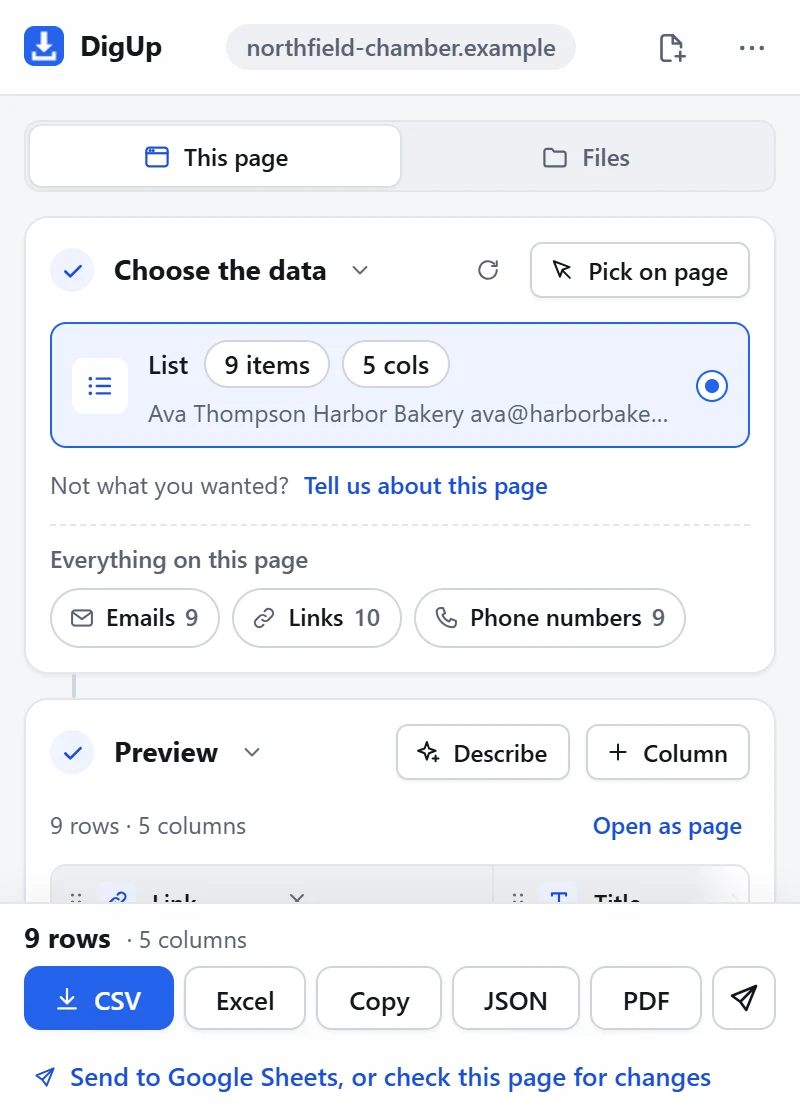
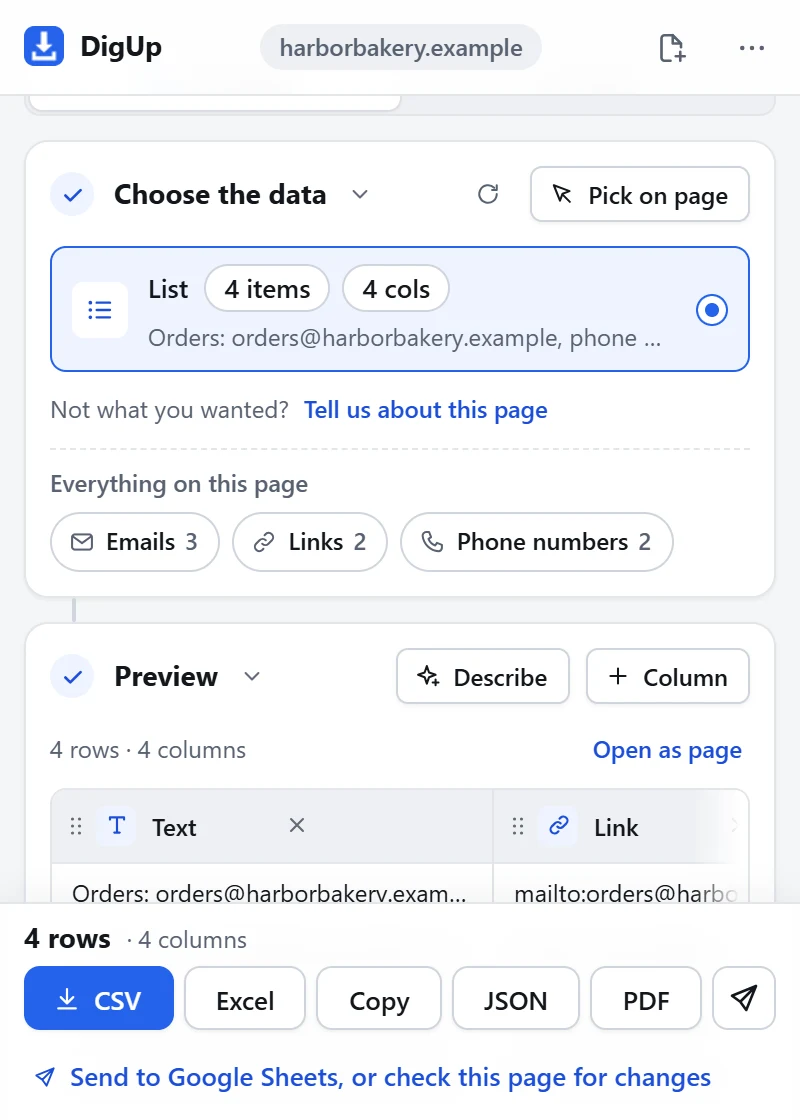
  1. DigUp found the list on the page and shows it under Choose the data
    Step 1Open the directory and click DigUp

    DigUp finds the list of people and picks it. Not the right list? Press Pick on page and click one person.
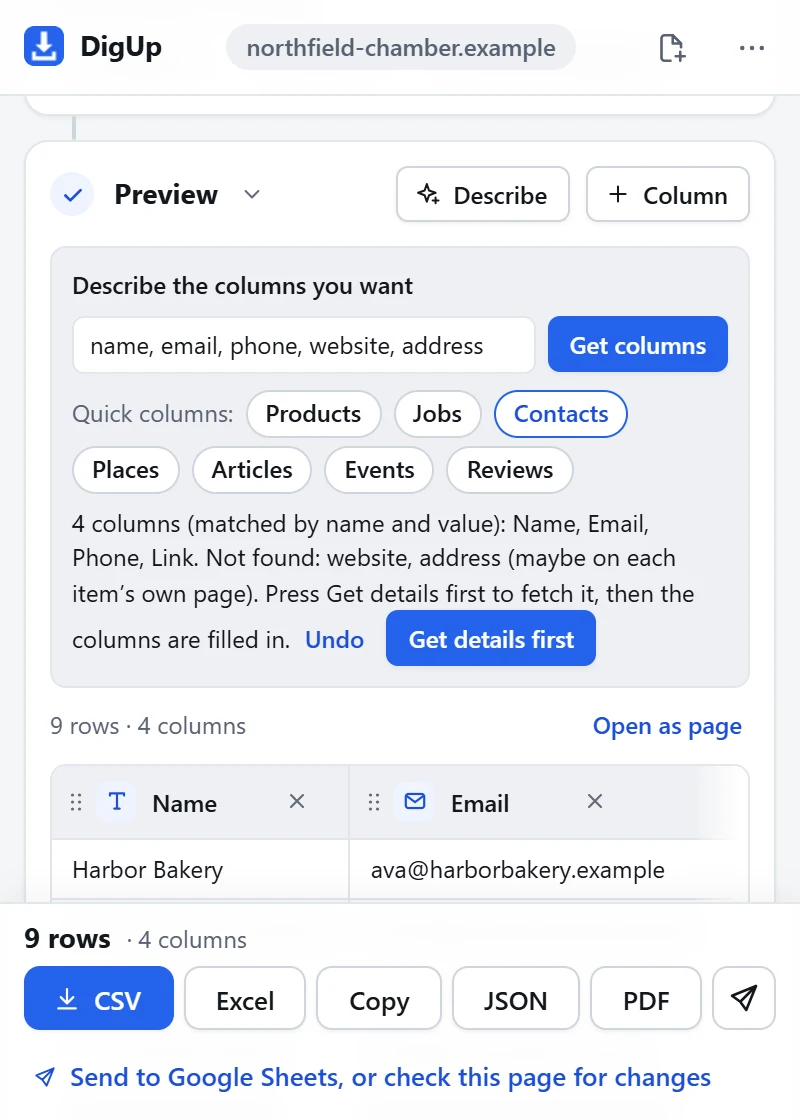
  2. The Describe box with Quick columns: Products, Jobs, Contacts and more
    Step 2Keep the contact columns

    Under Quick columns, press Contacts to keep Name, Email, Phone and Website in one click.
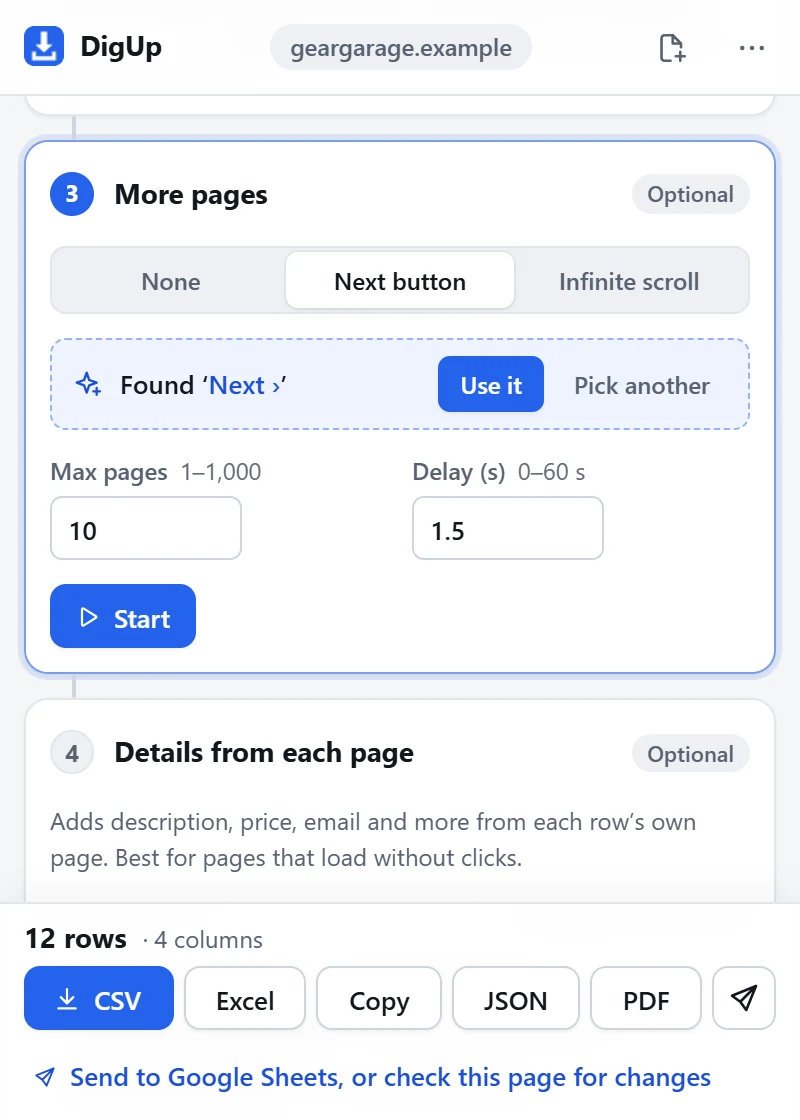
  3. More pages with the Next button found, a page limit, a delay and Start
    Step 3Collect every page

    Open More pages. DigUp finds the Next button for you. Set a page limit and a delay, then press Start.
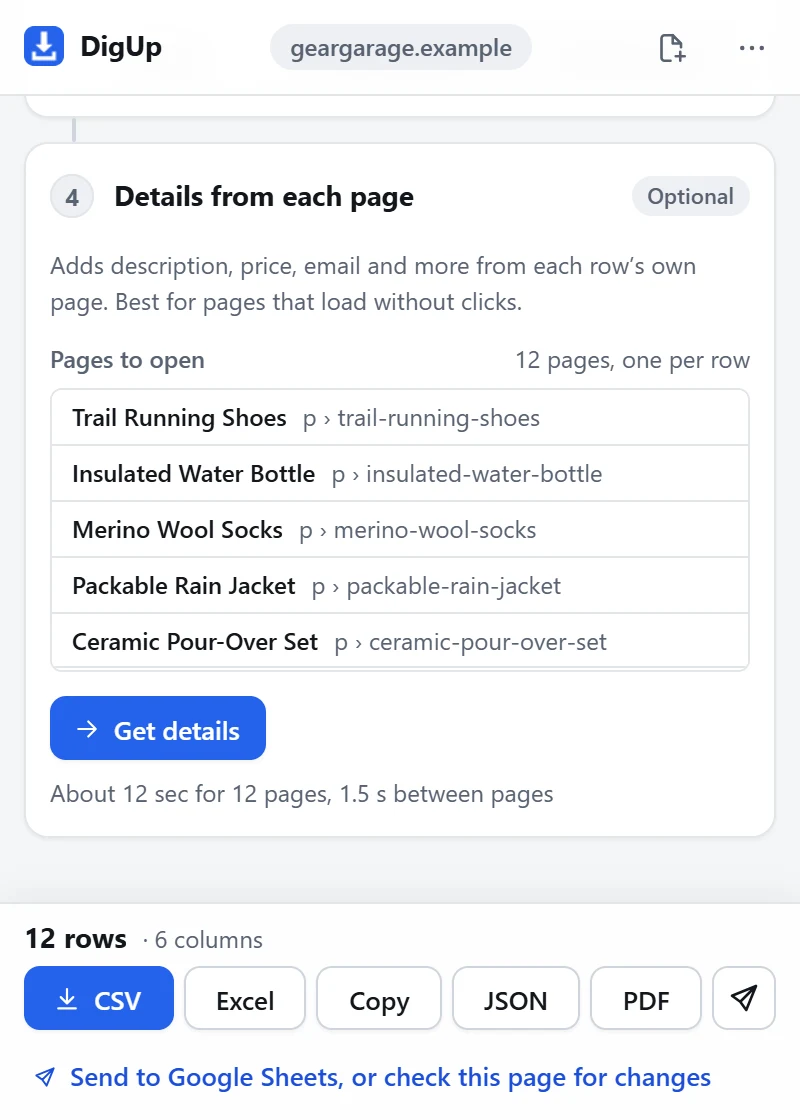
  4. Details from each page, with the pages to open and Get details
    Step 4Add details from each profile

    Under Details from each page, press Get details. DigUp opens each person's own page on the same site and adds email, phone and company.
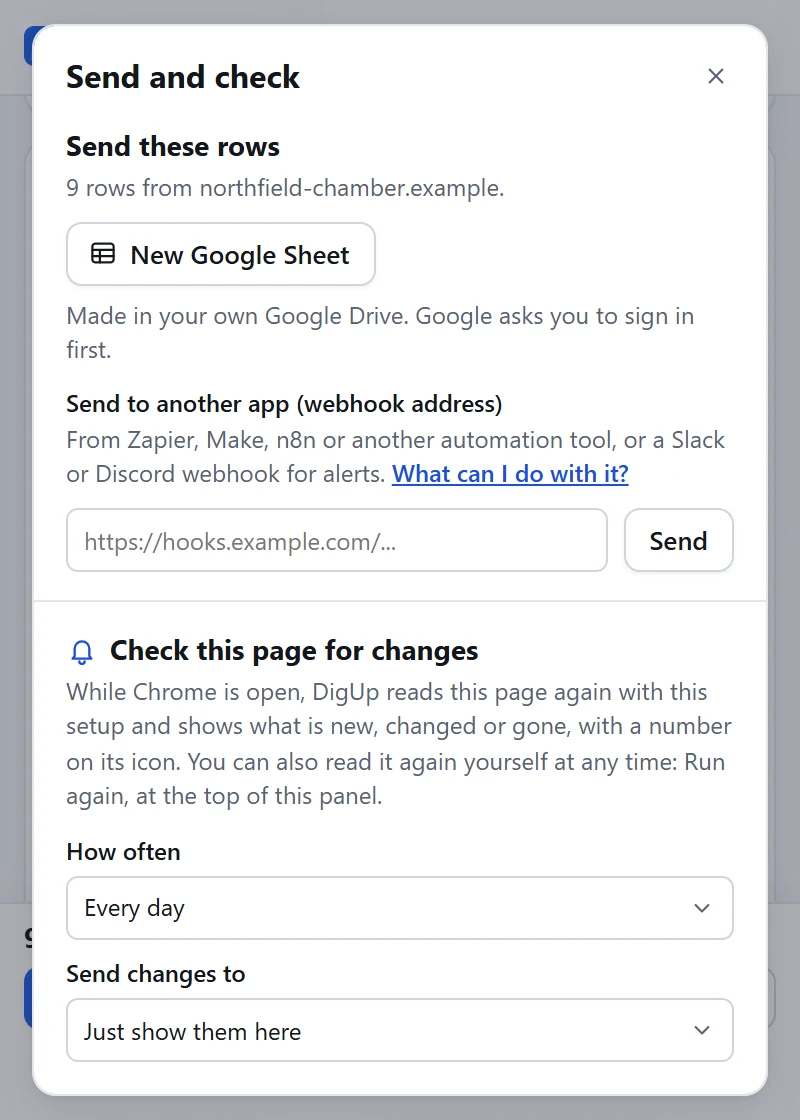
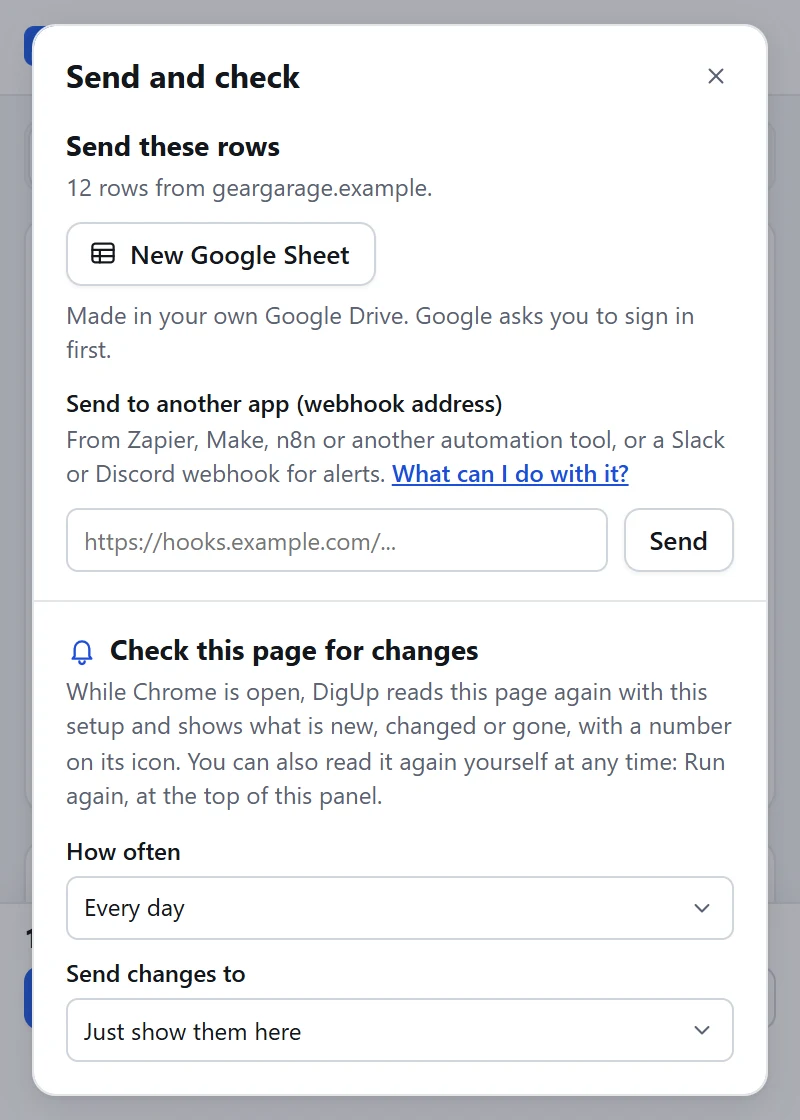
  5. The Send and check window: New Google Sheet, a webhook address and Check this page for changes
    Step 5Export or send

    Save as Excel, or press Send and choose New Google Sheet.

  6. You get

    One lead sheet with every person from every page.

    Tip: on the results page, Find contact details reads the contact page of each row's website and adds the emails and phone numbers it shows.

You'll use
  • Quick columns
  • More pages
  • Details from each page
  • Export

Use case 2 · Shopping and pricing

Track prices and get told when they drop

Watch a shop page and get a desktop alert when a price falls to the amount you want.

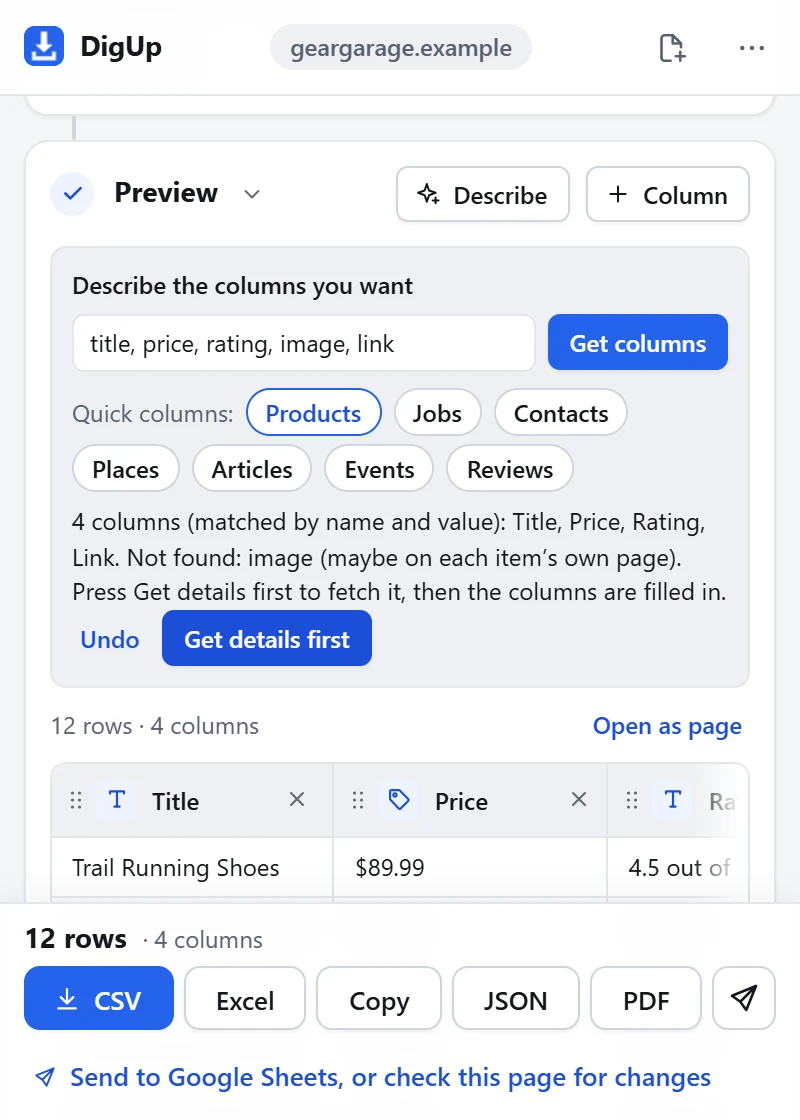
  1. Quick columns with Products chosen: Title, Price, Rating and Link for a shop page
    Step 1Open the shop page and click DigUp

    Press Products under Quick columns to keep Title, Price and Link.

  2. Check this page for changes: how often, and where changes go
    Step 2Turn on a page check

    Press the Send button, then Check this page for changes. Choose Every 12 hours, Every day or Every week. Chrome asks you once to allow that site.

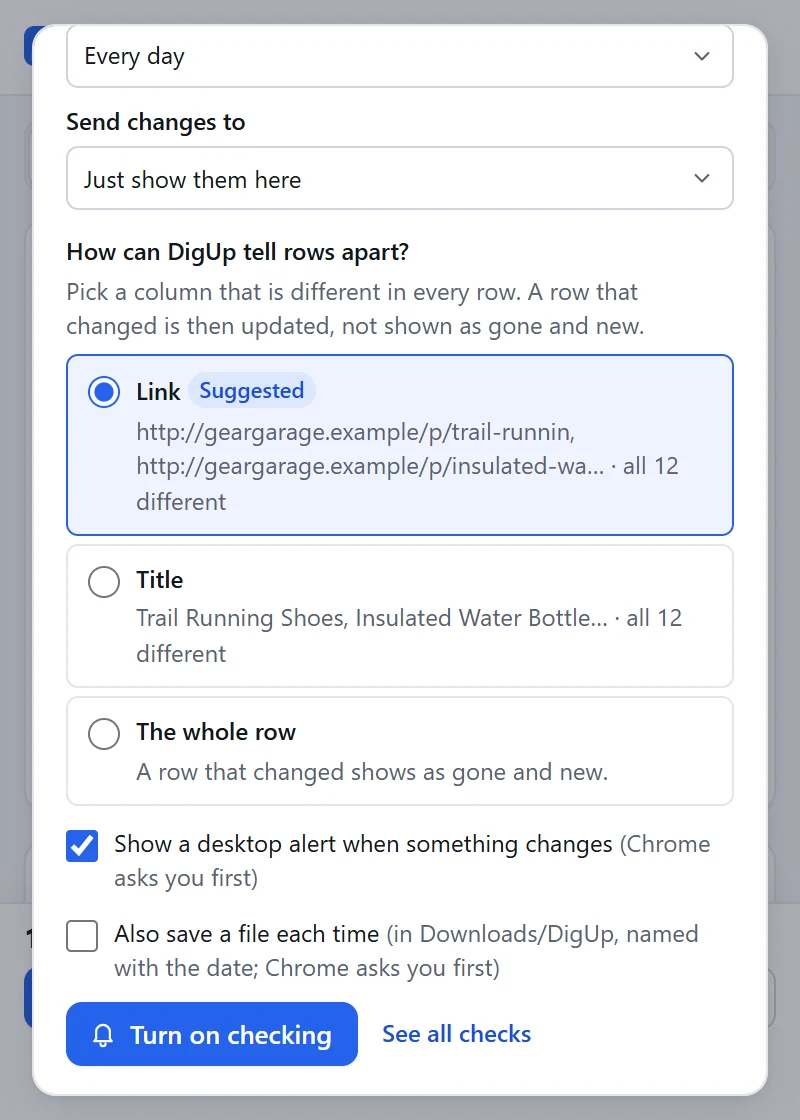
  3. Options for a page check, with the desktop alert and Turn on checking
    Step 3Ask for a desktop alert

    Tick the desktop alert, so you hear about new, changed and gone items without opening DigUp.

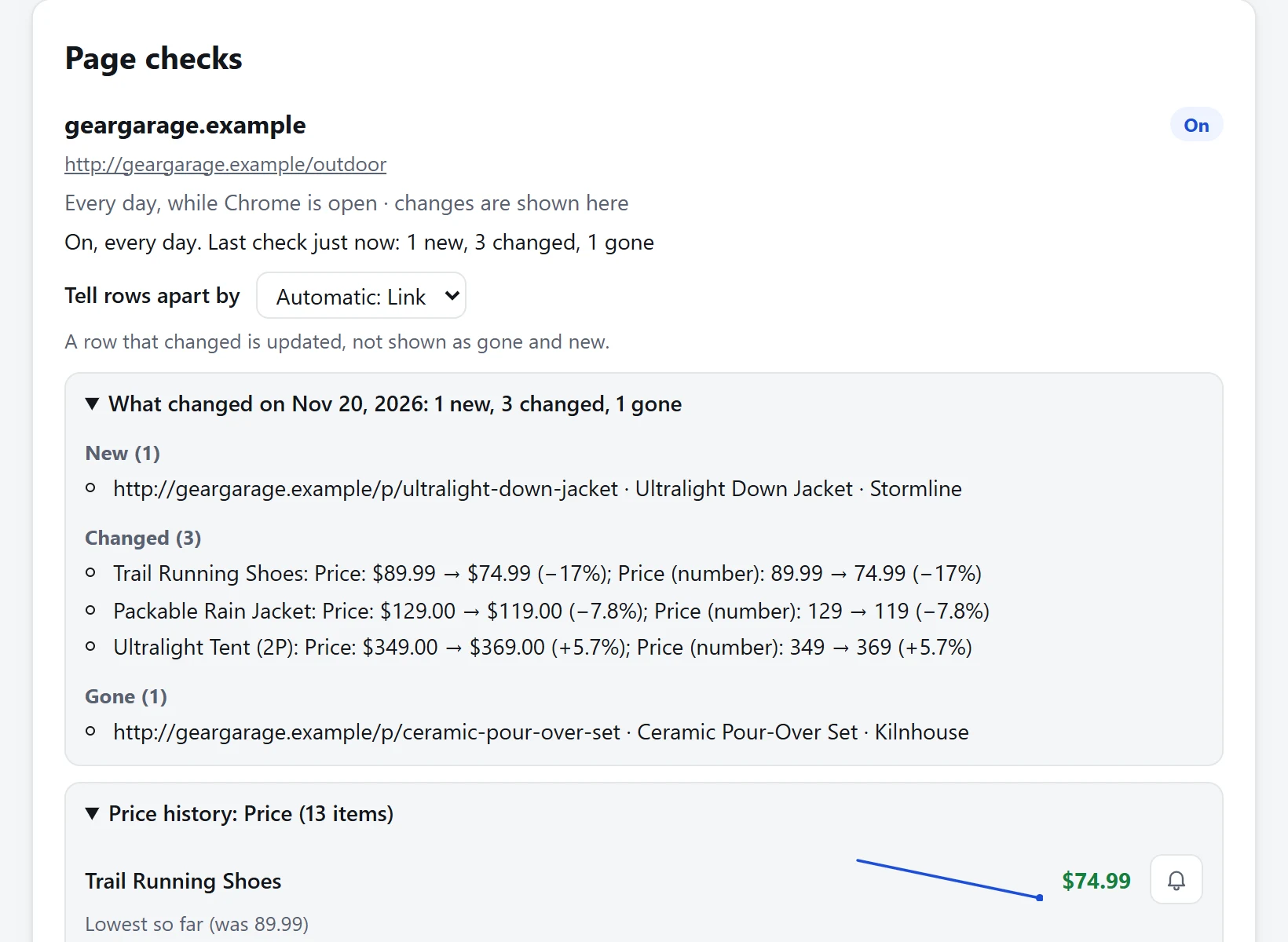
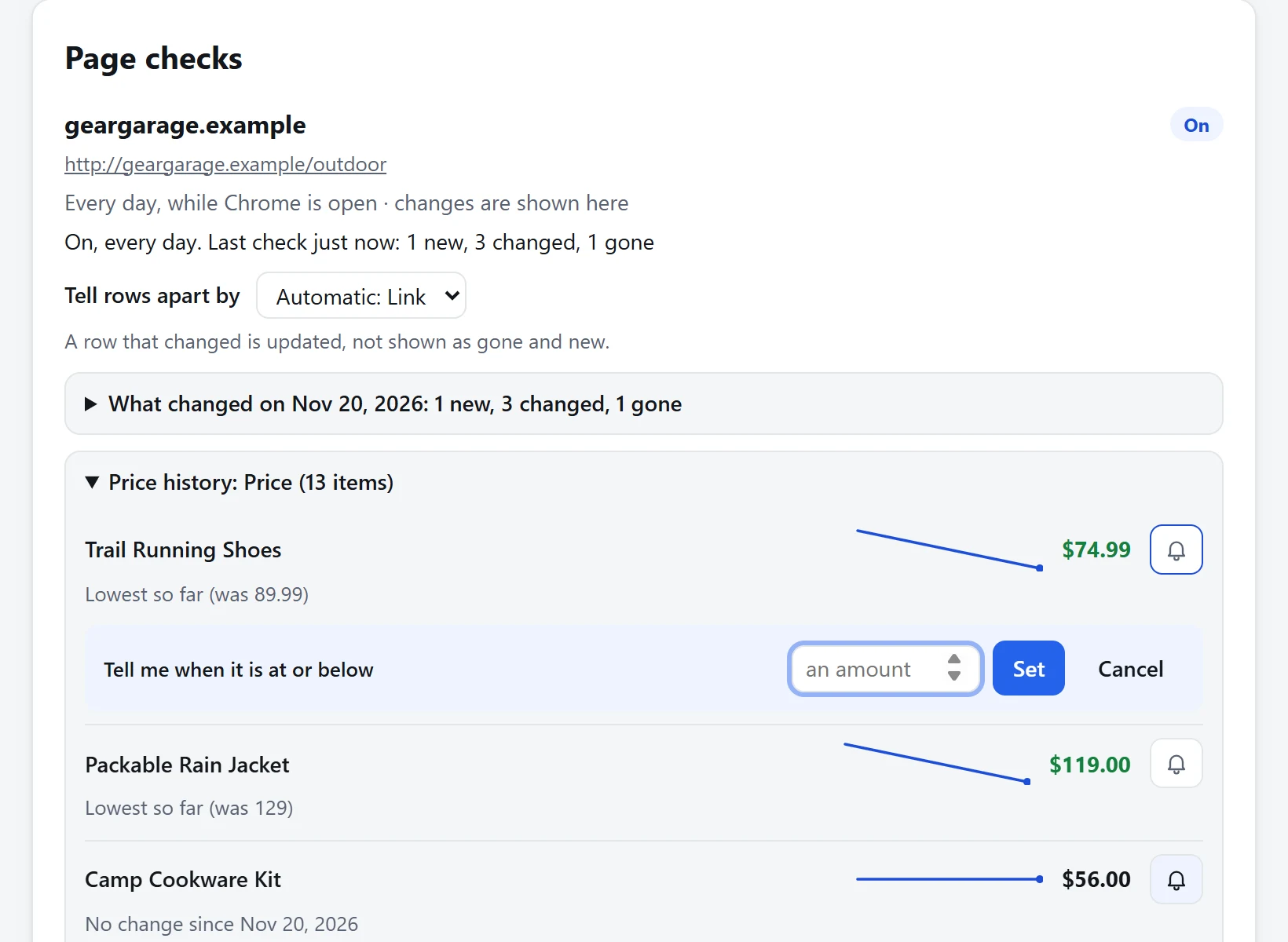
  4. Saved setups and checks: 1 new, 3 changed and 1 gone, with the price changes
    Step 4See what changed

    Open Saved setups & checks from DigUp's menu. Price drops come first, and each item shows its price history.

  5. Price history for each item, with Tell me when it is at or below an amount
    Step 5Set your price

    Press Set an alert for this item and type your amount. DigUp alerts you when the price is at or below it.

  6. You get

    An alert the moment the price you want shows up.

    Tip: checks run while Chrome is open. Choose how long price history is kept (1 month, 6 months or 1 year) on the Saved setups page.

You'll use
  • Page checks
  • Price history
  • Price alerts

Use case 3 · Job search

Follow new job postings

Run your job search once, then see only the postings that are new since last time.

  1. The Describe box with Quick columns: Products, Jobs, Contacts and more
    Step 1Search on the job site and click DigUp

    Press Jobs under Quick columns: title, company, location and salary.

  2. Check this page for changes: how often, and where changes go
    Step 2Check the search every day

    Press Send, then Check this page for changes, and choose Every day.

  3. The Send and check window: New Google Sheet, a webhook address and Check this page for changes
    Step 3Keep one sheet up to date

    Choose One Google Sheet, kept up to date. Each check adds new posts, updates changed ones and marks the ones that are gone.

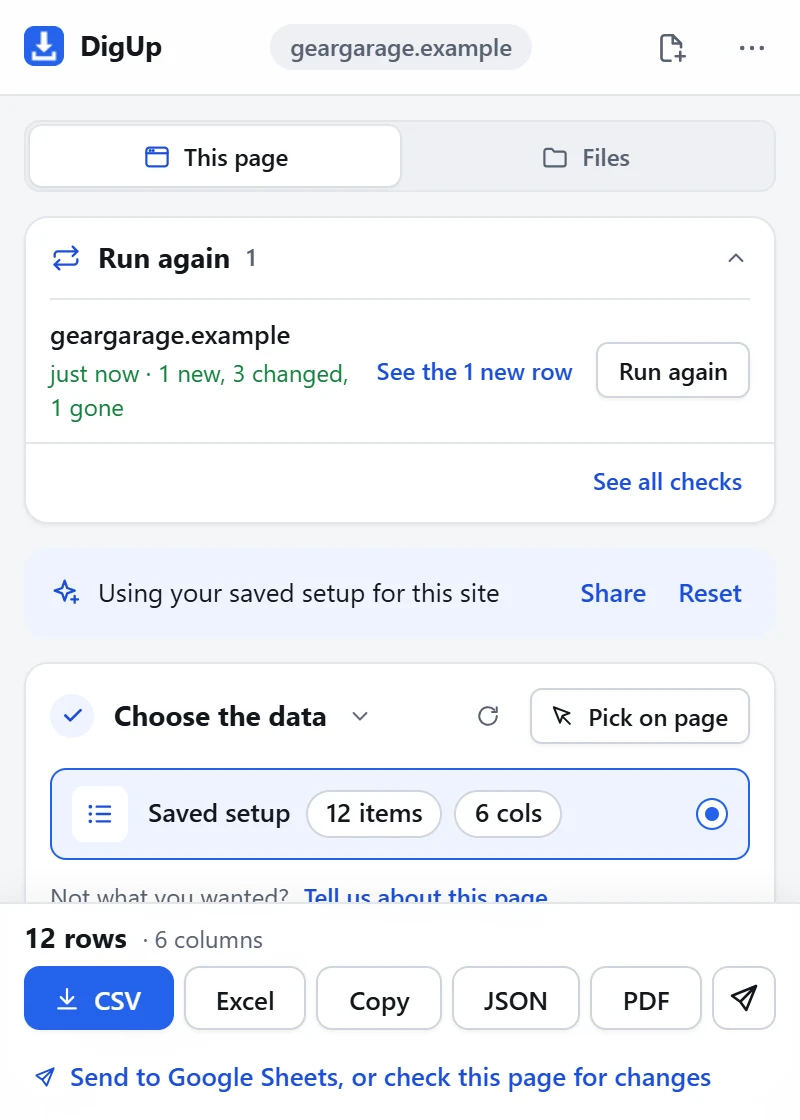
  4. The Run again card at the top of DigUp, with the last check
    Step 4Check yourself any time

    Open DigUp and press Run again. You see only the rows that are new since the last time.

  5. You get

    A job list that updates itself, with new posts flagged.

You'll use
  • Quick columns
  • Page checks
  • Run again
  • Google Sheets

Use case 4 · Research and analysis

Research products, listings or reviews across many pages

A complete, sorted table from a long list that spans many pages.

  1. Quick columns with Products chosen: Title, Price, Rating and Link for a shop page
    Step 1Say which columns you want

    Press Describe and type them in plain words, such as title, price without currency, rating, link.

  2. More pages with the Next button found, a page limit, a delay and Start
    Step 2Get every page

    Open More pages. Use the Next button DigUp found, press Pick Next button to choose it yourself, or choose Infinite scroll. Then press Start.

  3. Details from each page, with the pages to open and Get details
    Step 3Add details if you need them

    Get details reads each item's own page and adds the description and other fields.

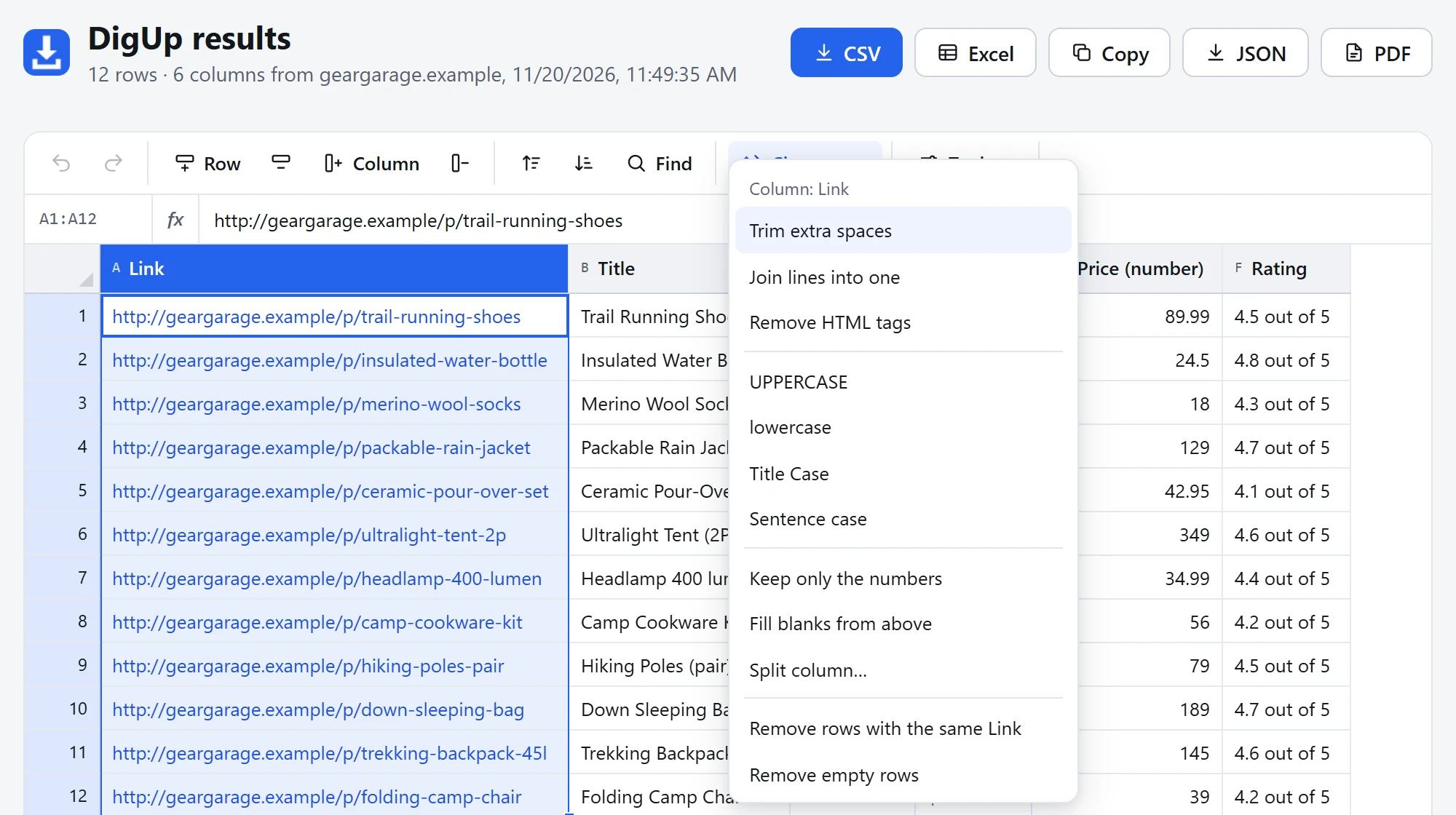
  4. DigUp's results page with the Clean up menu open
    Step 4Sort and tidy up

    Press Open as page. Sort by price, use Remove duplicates, and edit any cell.

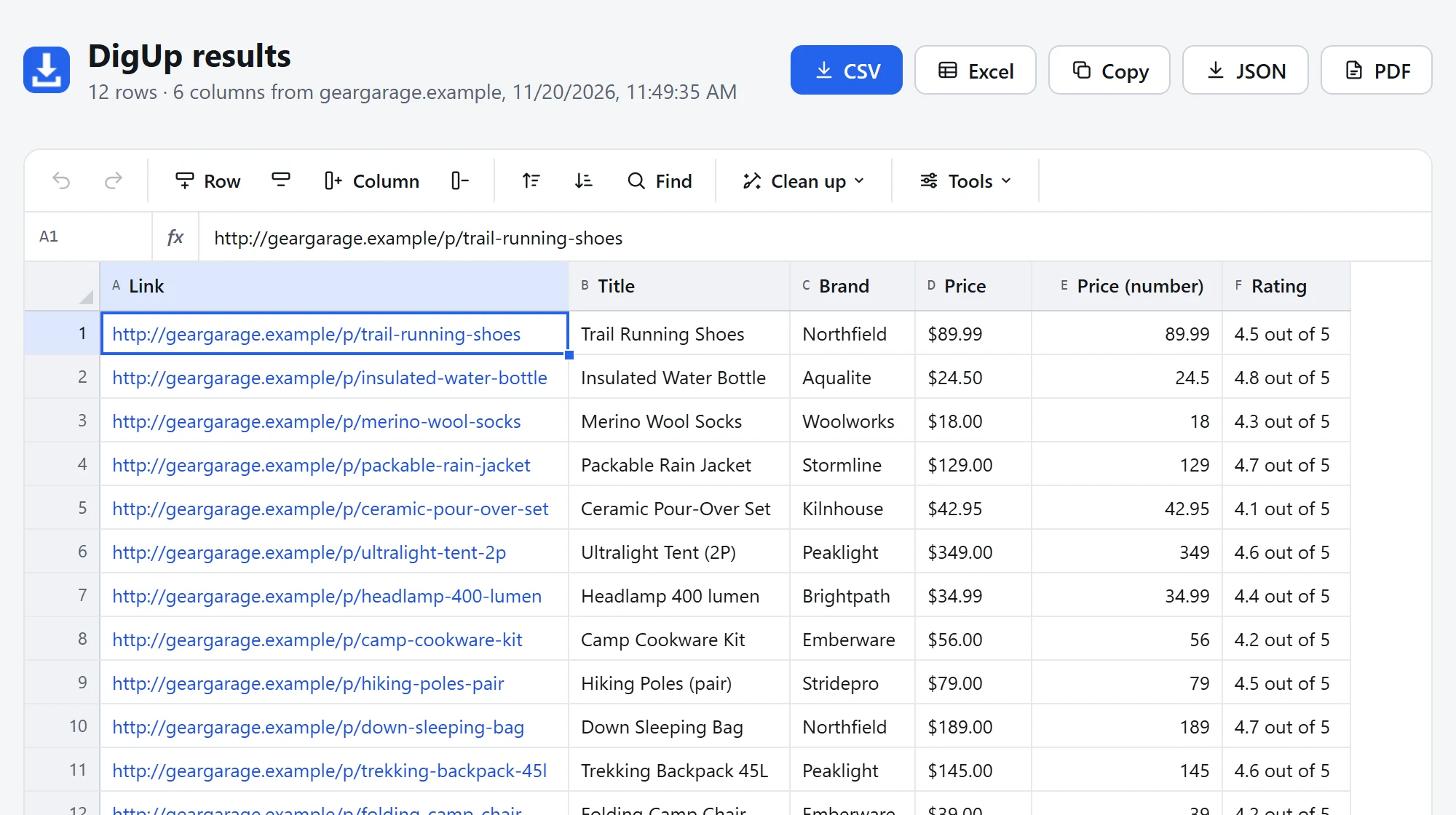
  5. DigUp's results page: every row in a table you can edit and save
    Step 5Save

    Save as CSV, Excel, JSON or PDF.

  6. You get

    Every item, exactly as the site shows it, in a table you can sort.

    Tip: DigUp remembers this setup for the site, so next time the same columns are ready in one click.

You'll use
  • Describe
  • More pages
  • Get details
  • Open as page

Use case 5 · Shortlists

Save pages as you browse

A shortlist of apartments, products or companies, one row per page, built while you look around.

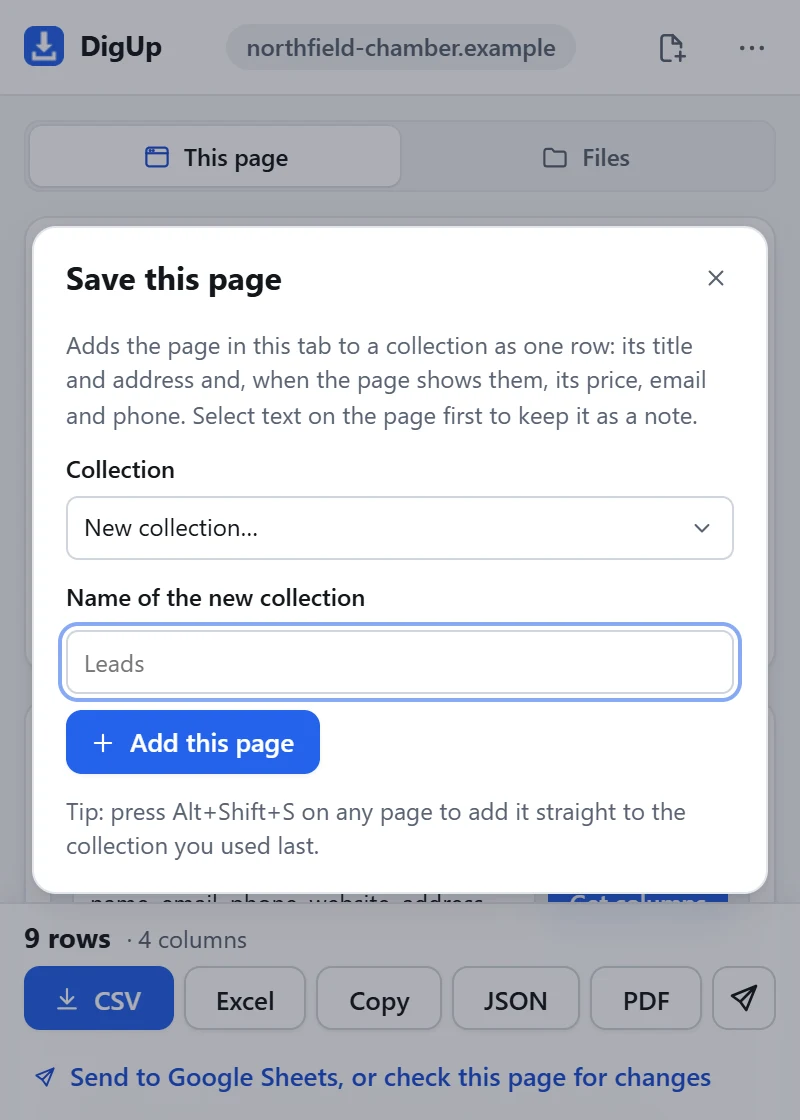
  1. The Save this page window, with the collection to save into
    Step 1Make a collection

    In DigUp, press the Save this page button, choose New collection… and give it a name, such as Apartments.

  2. Alt+Shift+Sor right-click the pageDigUp: save this page
    Step 2Save each page you like

    Press Alt+Shift+S, or right-click the page and choose DigUp: save this page. DigUp keeps the title and address, and the price, email or phone when the page shows them.

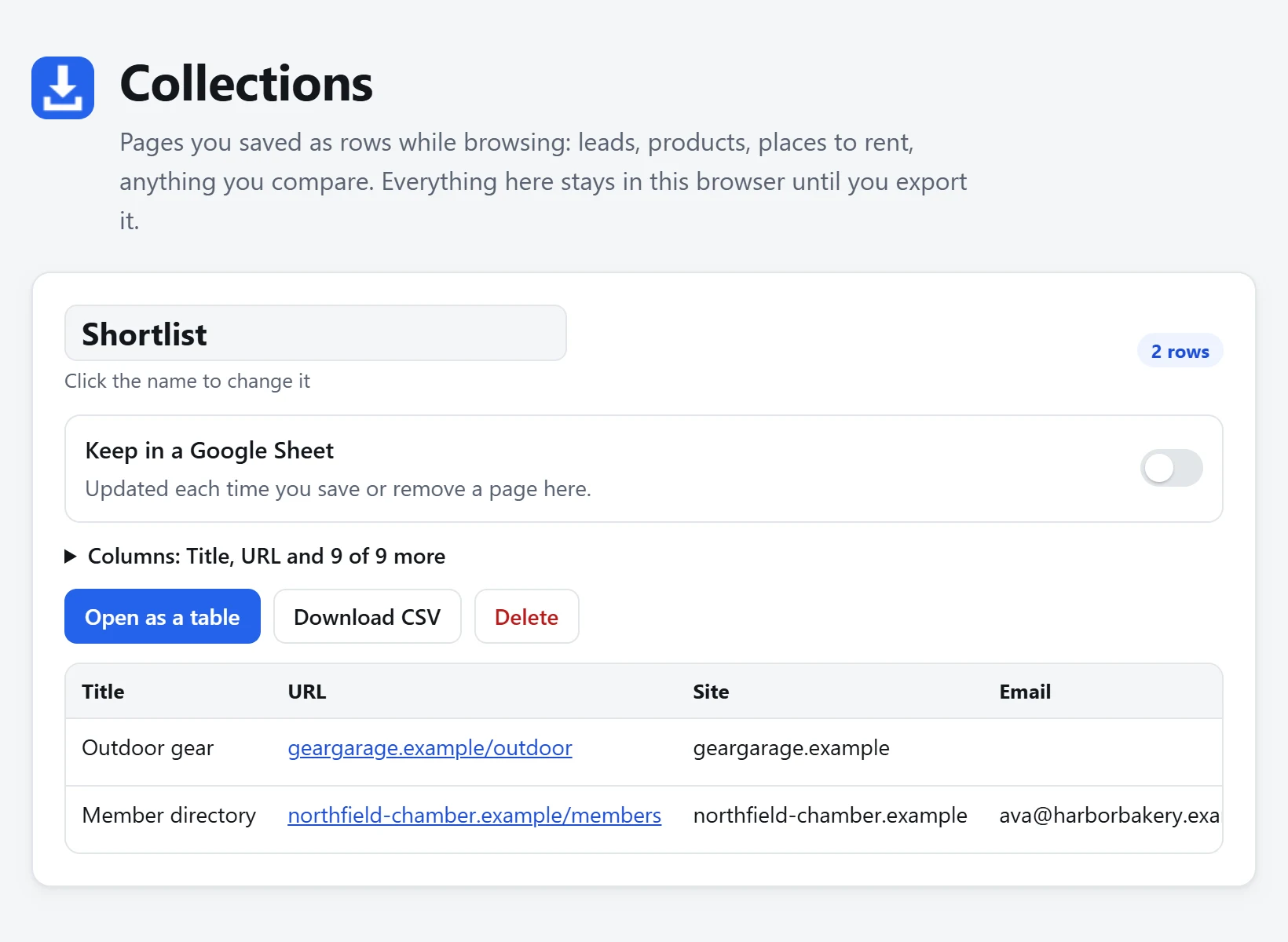
  3. The Collections page, with Keep in a Google Sheet and the saved pages
    Step 3Open your list

    Choose Collections in DigUp's menu to see every saved page as a row, and export it.

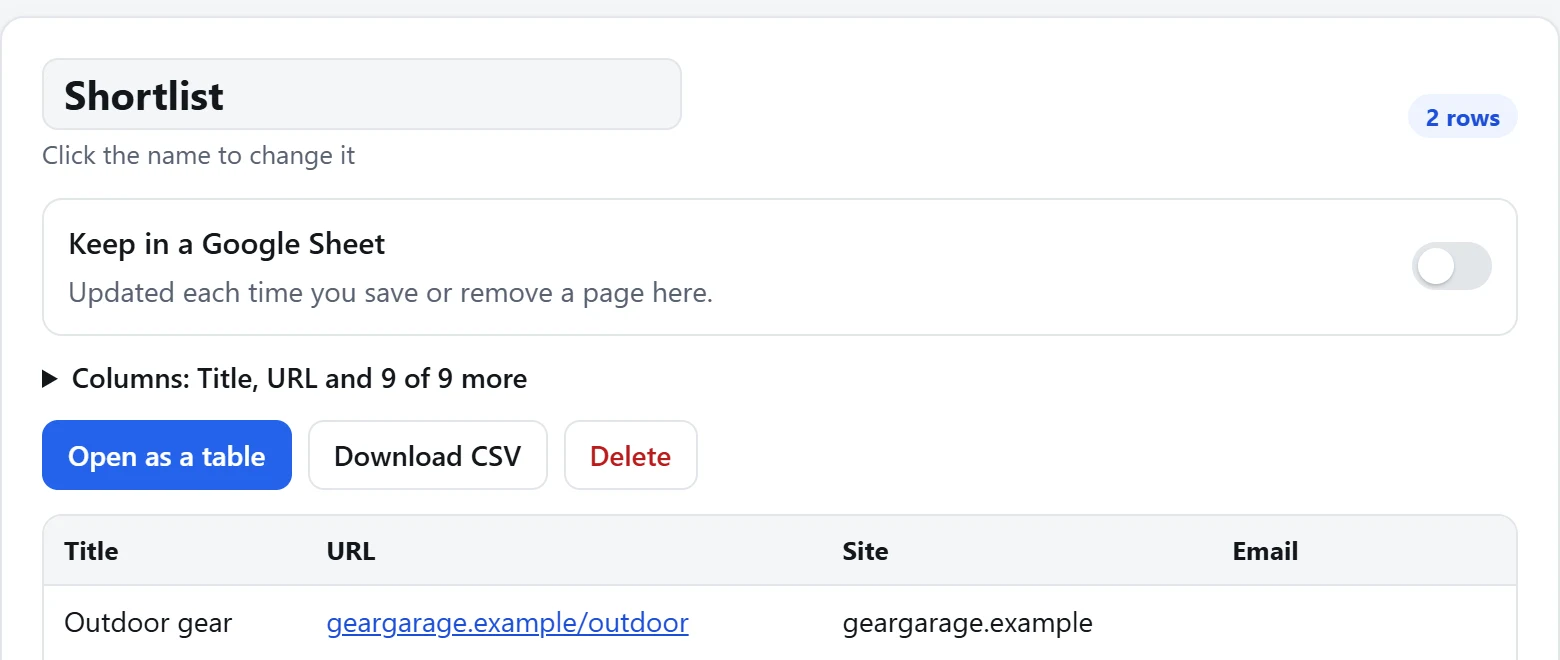
  4. A collection with the Keep in a Google Sheet switch
    Step 4Share it as a sheet (optional)

    Turn on Keep in a Google Sheet, and the sheet updates each time you save a page.

  5. You get

    A tidy shortlist instead of 30 open tabs.

You'll use
  • Collections
  • Right-click menu
  • Google Sheets

Use case 6 · Paperwork

Turn invoices, PDFs and scans into one table

Lines from many invoices or statements in one spreadsheet, without retyping.

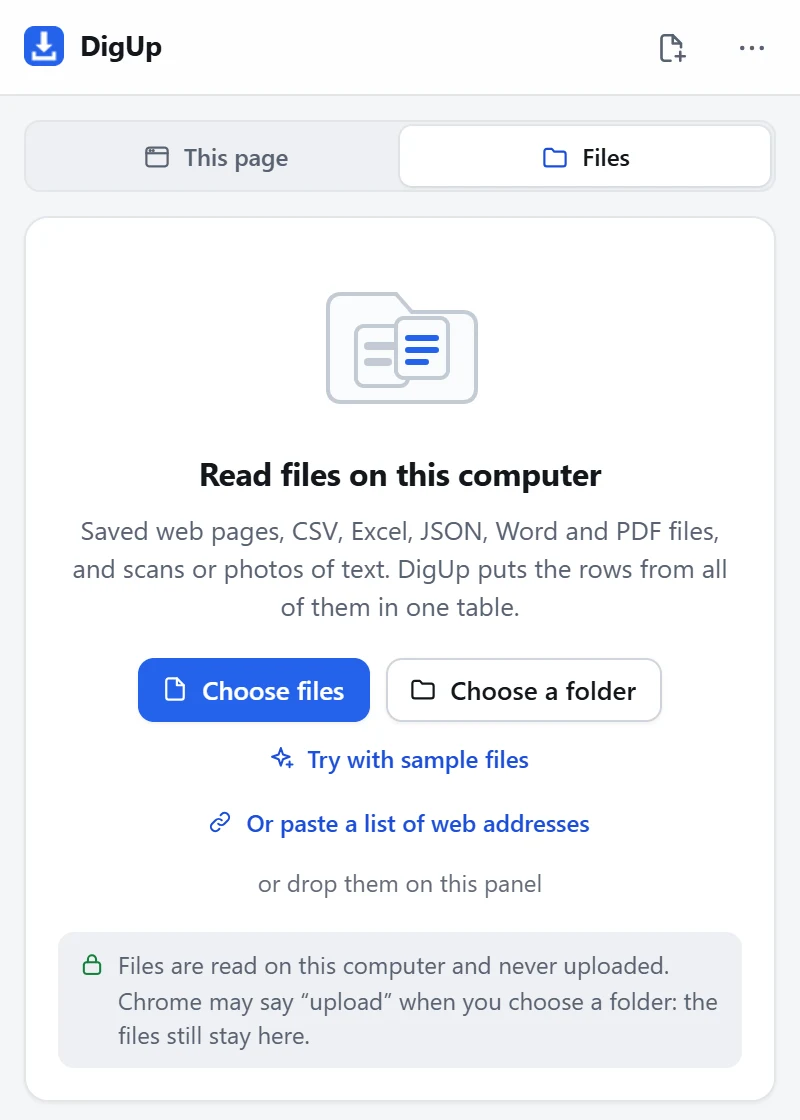
  1. Files mode: Choose files, Choose a folder, or paste a list of web addresses
    Step 1Switch DigUp to Files

    At the top of the panel, choose Files instead of This page.

  2. Files mode: Choose files, Choose a folder, or paste a list of web addresses
    Step 2Choose your files

    Press Choose files, or drop files or a whole folder. Saved pages, CSV, Excel, JSON, Word and PDF all work.

  3. OCRScans and photos are read on your computer
    Step 3Read scans and photos

    For a picture of text, turn on Read with OCR. The text is read on your computer.

  4. DigUp's results page: every row in a table you can edit and save
    Step 4Check the columns, then read them all

    Set up the columns on the first file, then press Read all files. Every row says which file it came from.

  5. ↻Only new and changed files
    Step 5Next month, only the new ones

    Read the folder again: DigUp reads only the new and changed files, with the same setup.

  6. You get

    One table from a pile of documents. Nothing is uploaded.

    Tip: for invoices, DigUp puts the invoice number and date on every line, so the table is ready to sum.

You'll use
  • Files
  • Read with OCR
  • Export

Use case 7 · Many pages at once

Read a list of web pages into one table

You already have the links. DigUp reads each page with one setup.

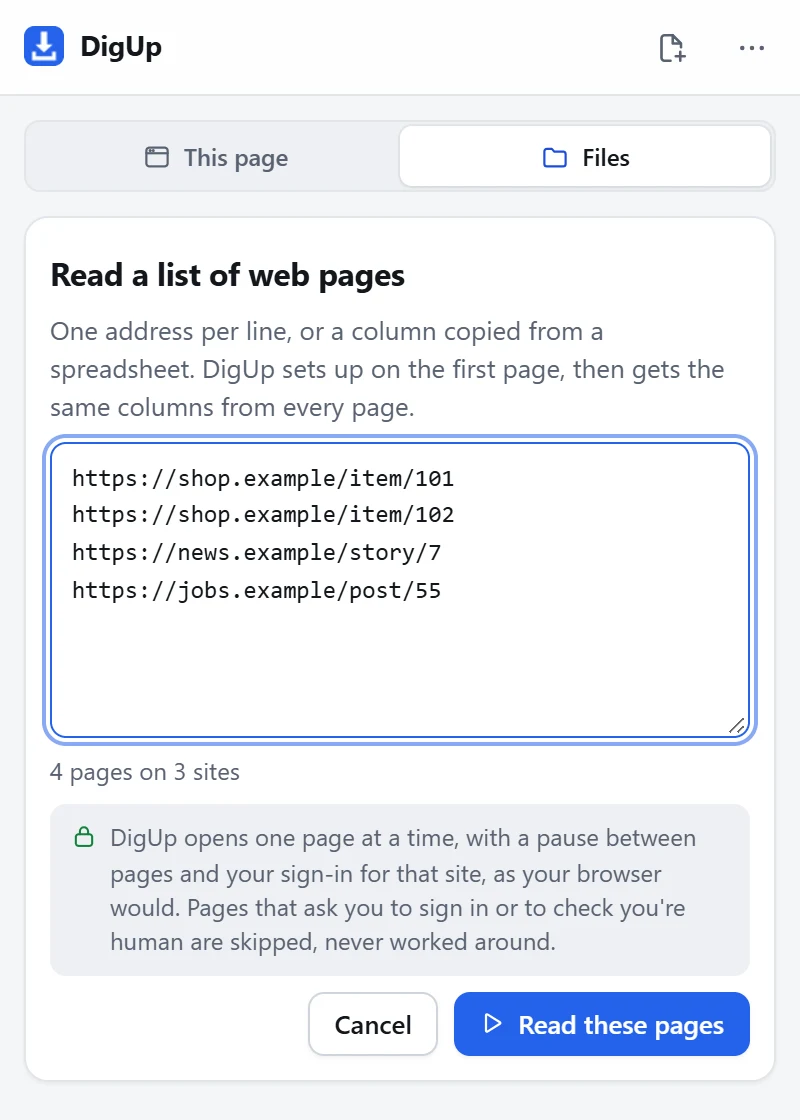
  1. Read a list of web pages, with addresses pasted one per line
    Step 1Paste your links

    In Files, choose Or paste a list of web addresses and paste one address per line.

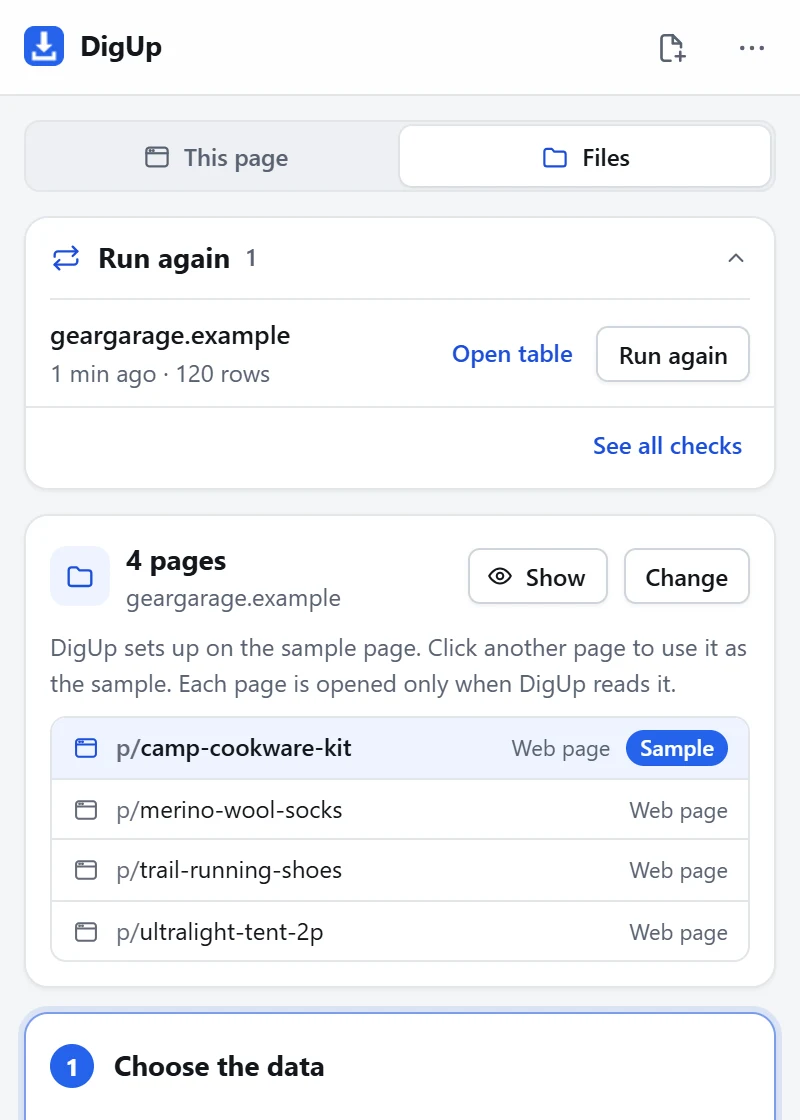
  2. Four pasted web pages, with the first one used as the sample to set up the columns
    Step 2Set up the columns once

    Pick the data and columns on the first page, the same way as on any page.

  3. Read a list of web pages, with addresses pasted one per line
    Step 3Read them all

    Press Read these pages. DigUp reads one page at a time with a pause, and skips pages that ask for a sign-in or show a bot check.

  4. DigUp's results page: every row in a table you can edit and save
    Step 4Export

    Each row has a column with the page it came from.

  5. You get

    One table from up to 20 sites, page by page.

You'll use
  • Files
  • A list of web addresses

Use case 8 · Clean data

Clean up once, and let DigUp repeat it

Messy text, blank cells and repeats fixed the same way every time you read a site.

  1. DigUp's results page: every row in a table you can edit and save
    Step 1Open the table as a page

    Press Open as page. Your rows open in a new tab that works like a spreadsheet.

  2. DigUp's results page with the Clean up menu open
    Step 2Clean it up

    Press Clean up…: Trim extra spaces, Keep only the numbers, Fill blanks from above, Split column… or Remove duplicate rows. Undo works for every step.

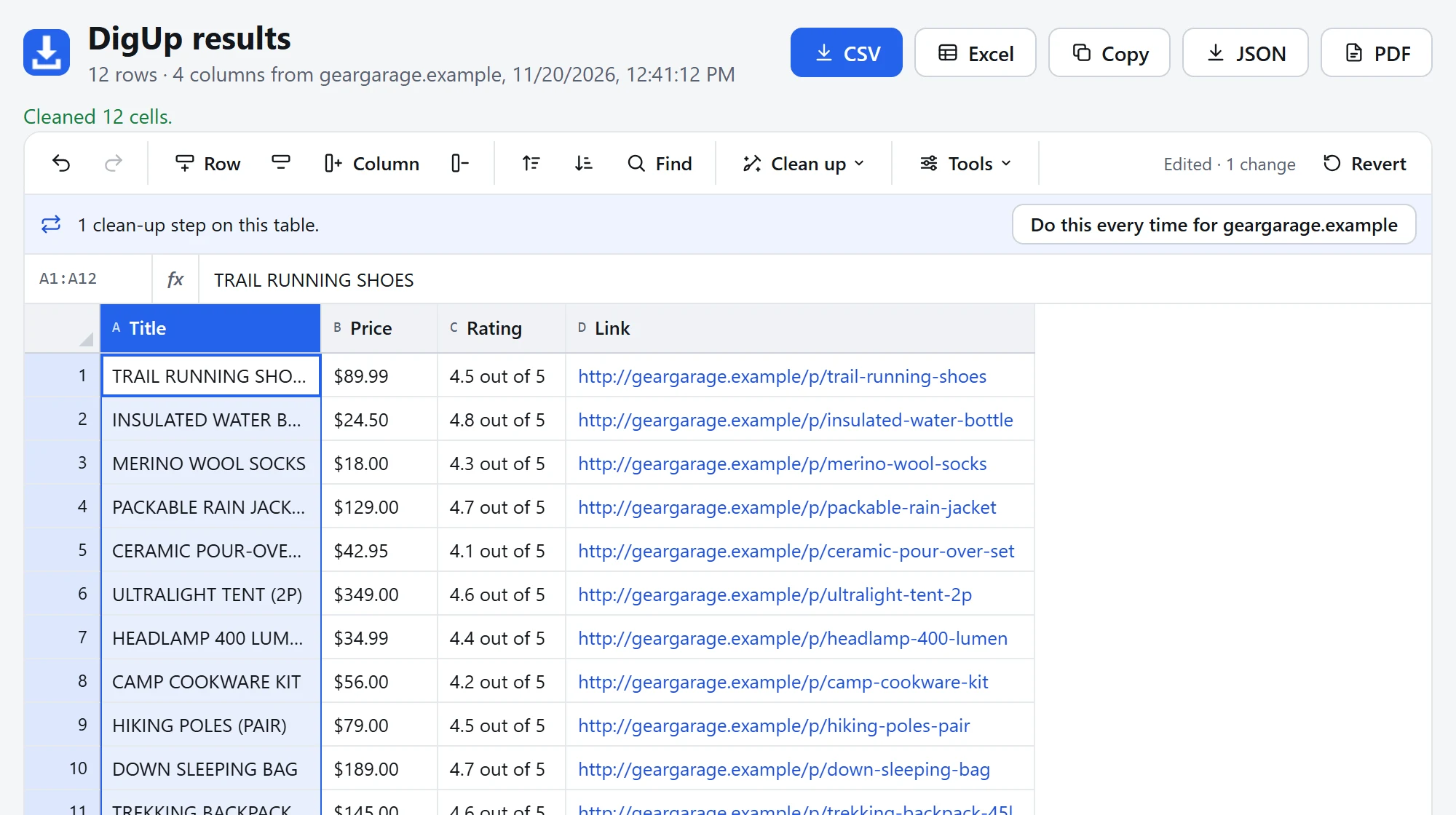
  3. After a clean-up step, the bar offers Do this every time for geargarage.example
    Step 3Make it automatic

    Press Do this every time for that site. DigUp does the same clean-up each time it reads it, page checks included.

  4. You get

    Clean data every time, without doing the work twice.

You'll use
  • Open as page
  • Clean up
  • Saved clean-up

Use case 9 · Combine data

Match your table with another one

Bring stock levels, owners or notes from your own file next to the rows you scraped.

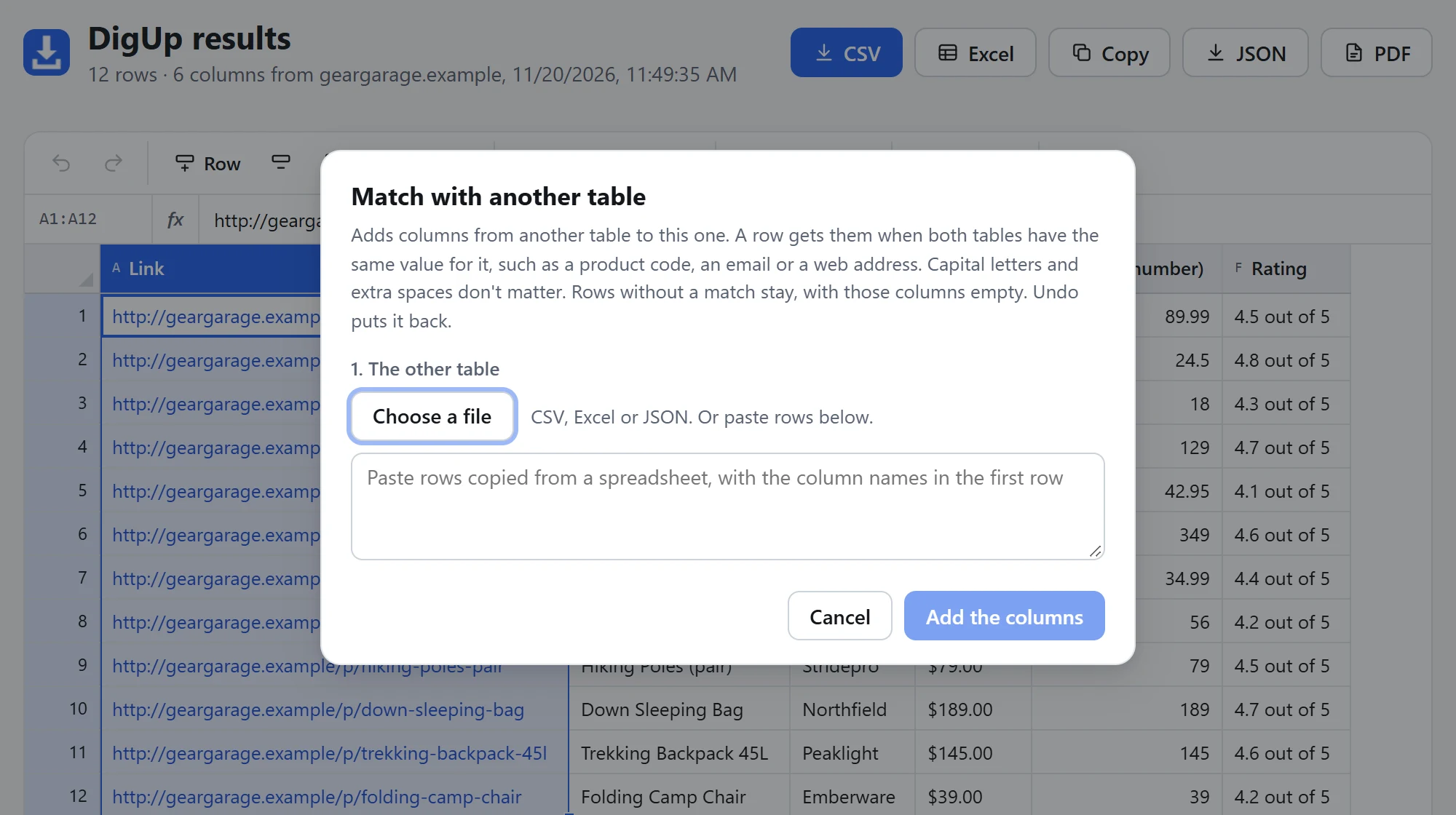
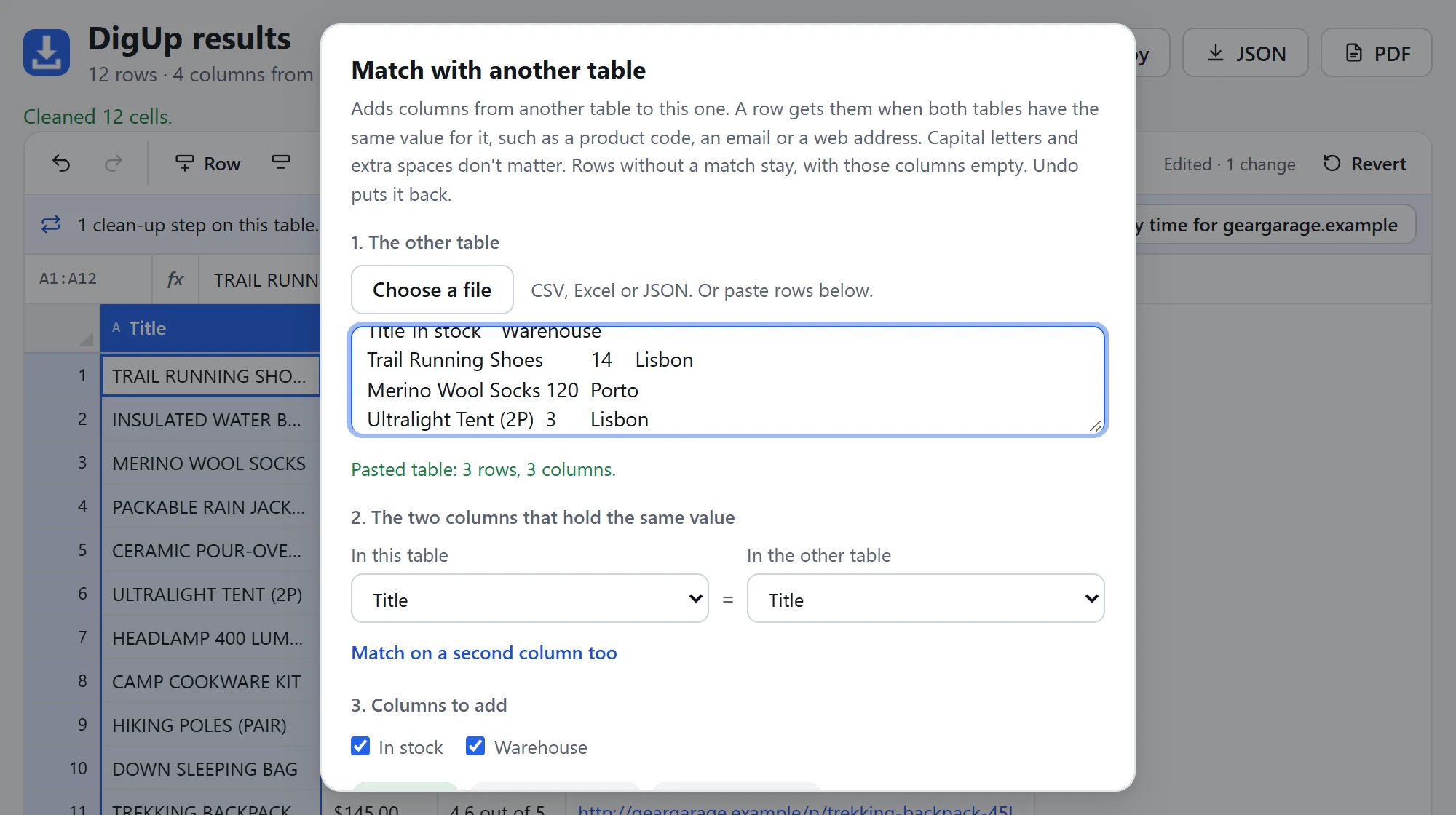
  1. The Match with another table window
    Step 1Start the match

    In Open as page, press Match with another table… and choose a CSV, Excel or JSON file, or paste rows.

  2. Match with another table: pasted rows, the two Title columns, and the columns to add
    Step 2Choose what links them

    Pick the column both tables share, such as SKU or Email. Need more? Use Match on a second column too.

  3. Match with another table: pasted rows, the two Title columns, and the columns to add
    Step 3Bring the columns over

    Choose which columns to add. Tick the option to also add the other table's rows that match nothing here, at the end.

  4. You get

    One combined table. DigUp tells you how many rows found no match.

You'll use
  • Open as page
  • Match with another table

Use case 10 · Automation

Send rows to Slack, your CRM or a sheet you already use

Rows, or only the changes, go straight into the tools you work in.

  1. { }Zapier · Make · n8n · Slack · Discord
    Step 1Get a webhook address

    Make one in Zapier, Make, n8n, Slack or Discord. The webhook guide has ready-made recipes.

  2. The Send and check window: New Google Sheet, a webhook address and Check this page for changes
    Step 2Send the rows

    Press Send, choose Send to another app (webhook address), paste the address, then press Send these rows.

  3. Check this page for changes: how often, and where changes go
    Step 3Send changes on a schedule (optional)

    With a page check on, choose the webhook under Send changes to. Every new or changed row arrives by itself.

  4. You get

    Data where your team already works, with no copy and paste.

You'll use
  • Send
  • Webhooks
  • Page checks

Use case 11 · Quick grab

Get every email, link, image or phone number on a page

For pages with no neat list, such as an article, a contact page or a footer.

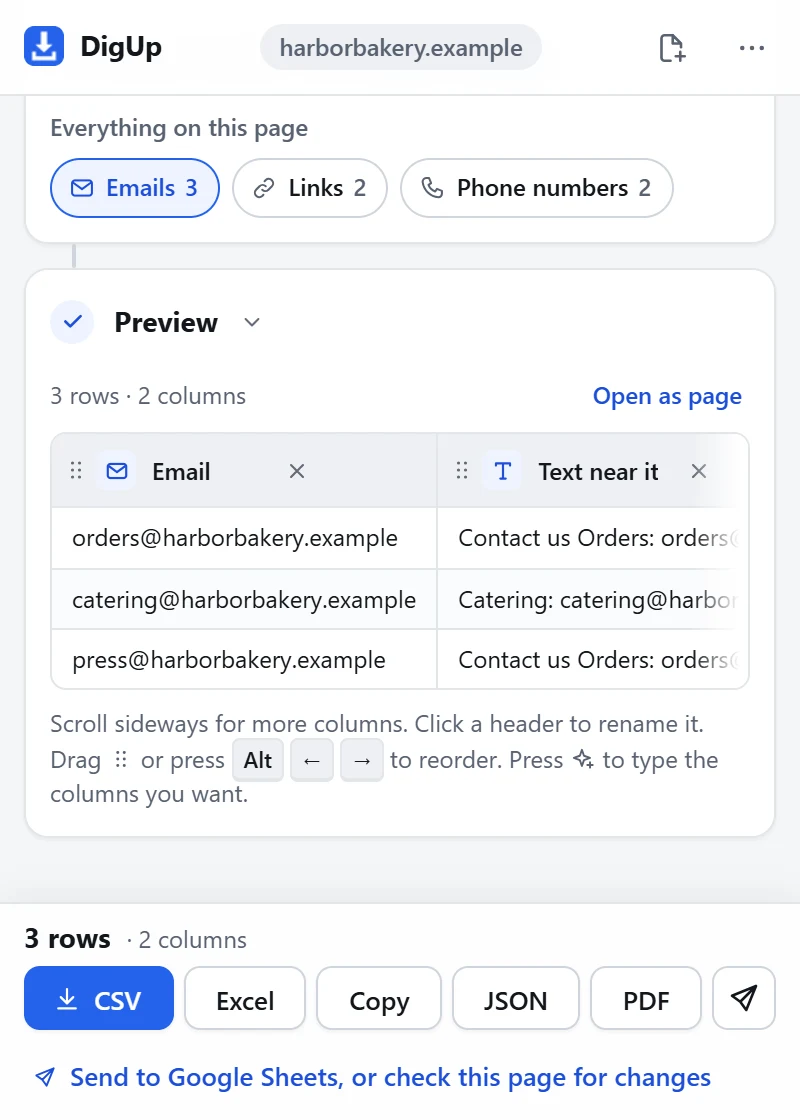
  1. Everything on this page: Emails, Links and Phone numbers
    Step 1Open DigUp on the page

    Choose Everything on this page.

  2. Emails chosen under Everything on this page: three email addresses in the preview
    Step 2Pick what you want

    Choose Emails, Links, Images or Phone numbers.

  3. Emails chosen under Everything on this page: three email addresses in the preview
    Step 3Copy or export

    Press Copy for Google Sheets or Excel, or save a file.

  4. You get

    A clean list in seconds, ready to paste.

You'll use
  • Everything on this page

Use case 12 · AI agents

Let your AI app scrape for you

Ask Claude, Cursor or another AI app for a list, and DigUp reads it in your own Chrome.

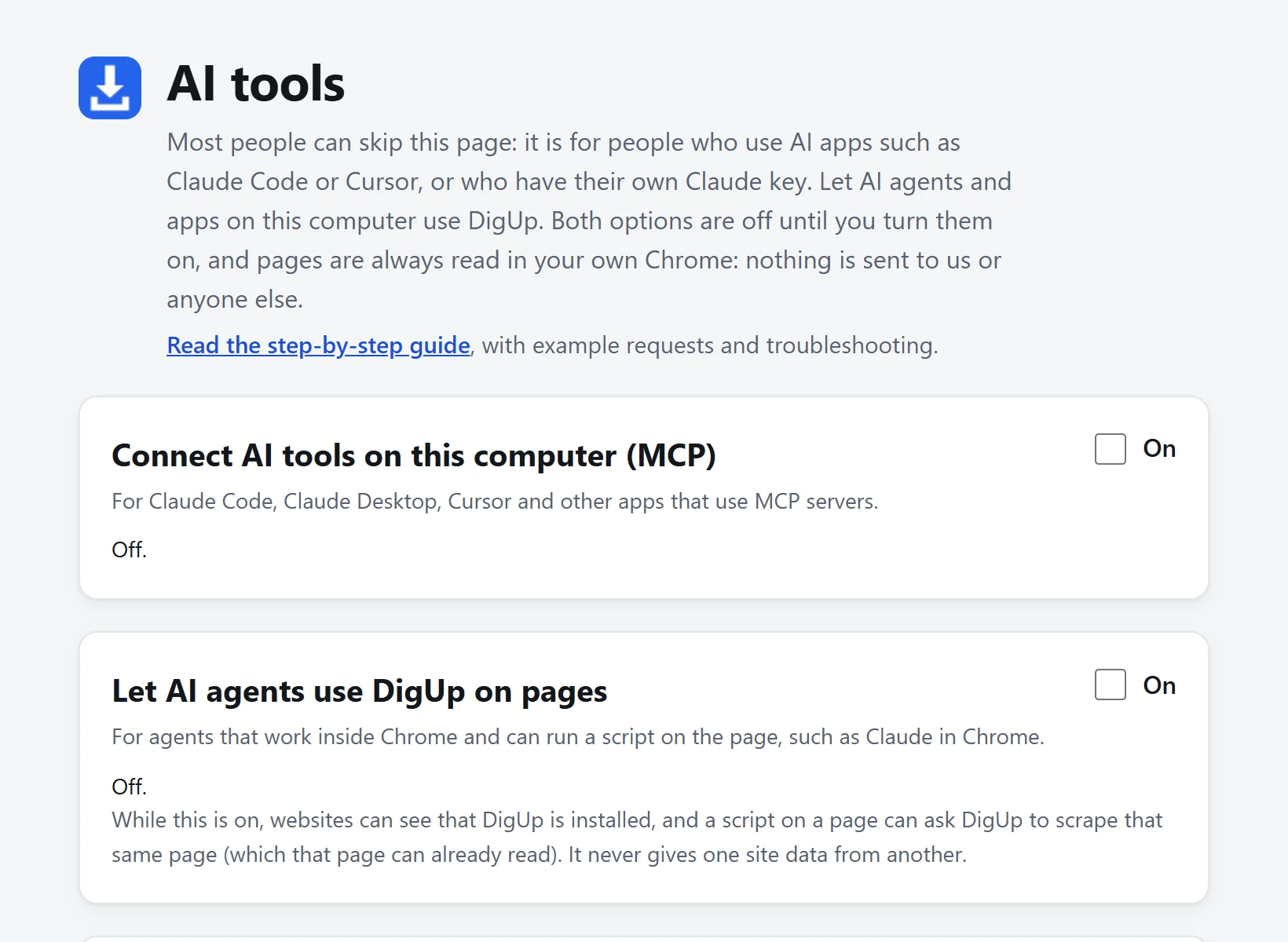
  1. DigUp's AI tools page, with each option off until you turn it on
    Step 1Open DigUp's AI tools page

    Choose AI tools in DigUp's menu. Everything there is off until you turn it on.

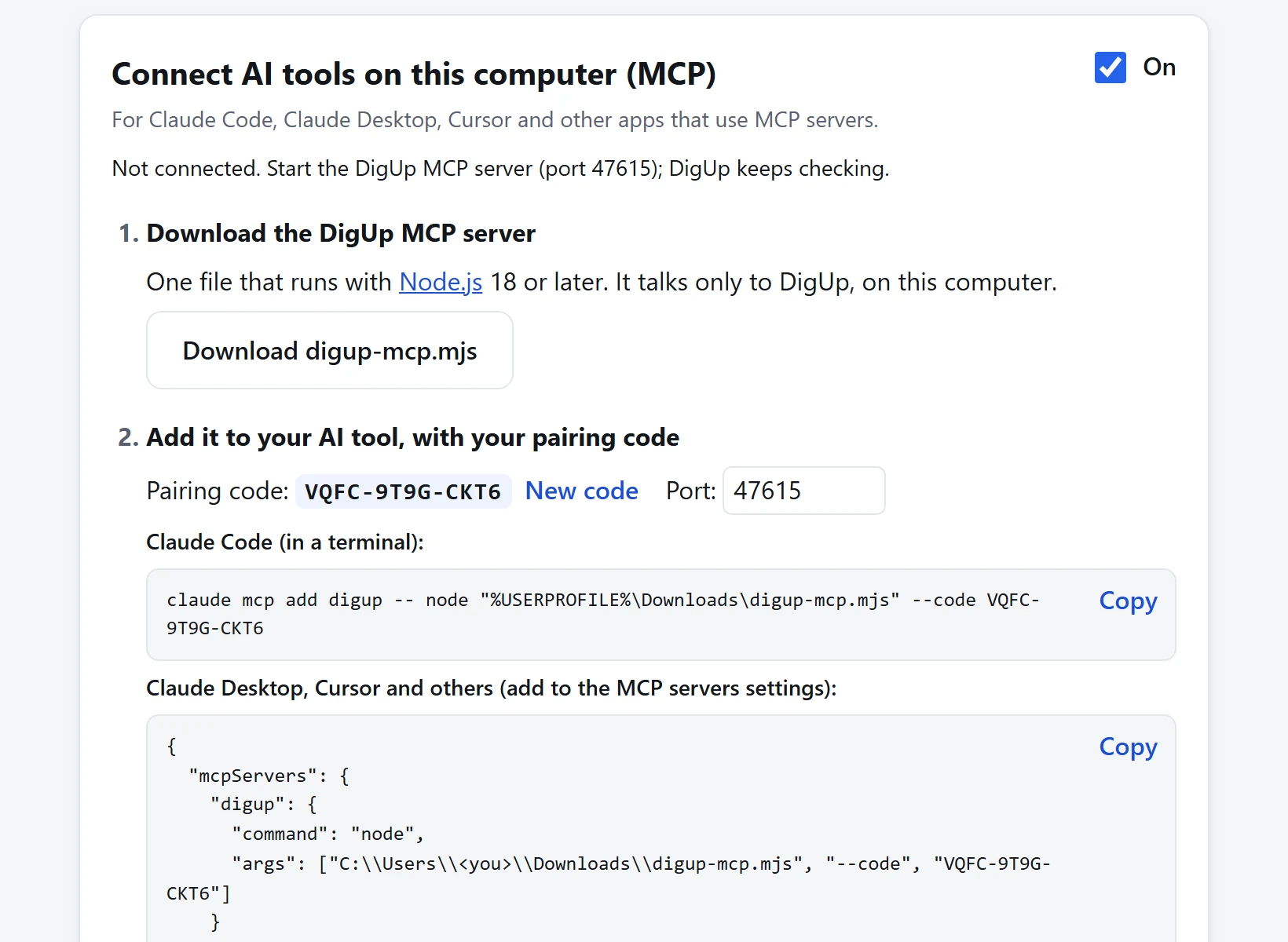
  2. Connect AI tools turned on: download the DigUp MCP server and add it to your AI tool
    Step 2Connect your AI app

    Turn on the link and follow the short setup shown on that page. The AI agents guide explains each step.

  3. “Get the product names and prices from this page.”
    Step 3Ask in plain words

    For example: "Get the product names and prices from this page." DigUp does the reading and hands back the rows.

  4. You get

    Exact rows for your AI app, with no credits and no cloud scraper.

    Tip: DigUp never gets past bot checks or sign-in pages, whoever asks.

You'll use
  • AI tools
  • MCP

All features

Free, with no account and no limits. Pages are read in your browser, and rows go only where you send them.

Find the data

  • Finds tables and lists for you and picks the best one, with a sample of each
  • Pick on page: click one item and DigUp finds all the items like it
  • Everything on this page: every email, link, image or phone number, even where there is no list
  • Boards (To do, In progress, Done) read as one table, a row per card
  • Dashboards: each table named after its box, all in one Excel file

Get the right columns

  • Clear column names such as Title, Price, Email and Date, with clean values
  • Quick columns for products, jobs, contacts, places, articles, events and reviews
  • Describe: type the columns you want in plain words
  • Rename, reorder, delete and add columns yourself
  • AI columns: a summary, category or sentiment per row, made on your device by Chrome's built-in AI

Get more rows

  • More pages: DigUp finds the Next button, or scrolls lists that load as you go, up to 50 pages
  • A delay and a page limit you choose, and Stop at any time
  • Details from each page: description, company, date, email and phone from each item's own page
  • A list of web addresses read into one table with one setup

Edit and clean up

  • Open as page: edit like a spreadsheet, with sort, find and replace, and undo
  • Clean up: trim spaces, change case, keep only the numbers, fill blanks, split columns, remove duplicates
  • Saved clean-up that DigUp repeats every time it reads that site
  • Match with another table, on one or two columns
  • Find contact details each row's website shows publicly
  • Ask your table: a question about every row, with your own Anthropic API key (optional)

Export and send

  • CSV, Excel, JSON or PDF, with every row, no limits
  • Copy for Google Sheets or Excel and paste
  • New Google Sheet in your own Google Drive, in one click
  • Webhooks: rows to Slack, Discord, your CRM, Zapier, Make or n8n

Keep watching a page

  • Check this page for changes every 12 hours, day or week, while Chrome is open
  • New, changed and gone rows marked, price drops first
  • Price history for up to a year, and a price alert for each item New
  • Run again: read a page again in one click and see only what is new
  • One Google Sheet, kept up to date, or a dated Excel or CSV file after each check

Collect while you browse

  • Collections: save the page you are on as one row, with Alt+Shift+S
  • Right-click any page to save it into the collection you choose New
  • Keep a collection in a Google Sheet, and choose which columns it keeps New

Files on your computer

  • Saved web pages, CSV, Excel, JSON, Word and PDF files into one table
  • Scans and photos of text read with OCR, on your device
  • A whole folder at once, and later only the new and changed files
  • Invoices and bank statements: the invoice number and date on every line

Setups and AI agents

  • Remembers your setup for each website: same columns next time
  • Share a setup with someone, or import theirs
  • AI apps such as Claude and Cursor can scrape through DigUp, in your own Chrome (off until you turn it on)
  • Light and dark mode, in a side panel, in six languages

Ready to try it?

Free, private, and ready in seconds. Stuck on a step? Tell us and we'll help.

Back to top ↑